


About this guide
This manual explains how to install TundraCast® Streaming Encoder 1.0.0, retrieve the required source-connection values from the TundraCast admin portal, configure up to four independent audio streams, validate operation, and perform routine service tasks.
Important: All account names, credential lengths, ports, identifiers, and stream labels shown in the screenshots are demonstration values. Always use the values assigned to your station under Streaming Endpoints in the TundraCast admin portal.
Quick-start workflow
- Open the portal. Select Streaming Endpoints from the left-hand menu.
- Collect the endpoint values. Copy the stream address, port, mount point, PAU username, and PAU password for the Primary endpoint.
- Run the installer. Launch the TundraCast Streaming Encoder Setup .exe with administrator rights and complete the wizard.
- Choose the input. Open the configurator, refresh devices, select the correct Windows audio input, and use Test input.
- Enter the endpoint and encoding settings. Match the portal's stream type and enter the assigned connection values.
- Save and verify. Select Save & apply, start or restart the service if needed, and confirm the row reaches Streaming.
What you need before starting
- A 64-bit Windows 10 or Windows 11 computer. Windows Server may be used when Desktop Experience, Windows Audio, and the required audio drivers are installed.
- .NET Framework 4.8 or later.
- Local administrator rights for installation and service management.
- One to four sound-card or AoIP inputs visible to Windows as DirectShow audio capture devices.
- Outbound network access from the encoder computer to the assigned TundraCast host and port. Inbound firewall rules and port forwarding are normally not required.
- Access to the station's TundraCast admin portal and its Streaming Endpoints page.
1. Retrieve the streaming endpoint
The encoder needs source-connection credentials, not merely a public listening URL. Retrieve the assigned values before beginning configuration.
- Sign in to the TundraCast admin portal.
- Select Streaming Endpoints from the left-hand menu.
- Expand Primary. The Primary endpoint contains the normal source-connection values for the station.
- Select the stream type. Choose AAC or MP3 to match the Format you will select in the encoder, then select Update if the portal requires it.
- Copy the five required values. Record the stream address, port, mount point, PAU username, and PAU password exactly as displayed.
Before leaving the portal
- Confirm whether the endpoint is configured for AAC or MP3.
- Record the complete address, assigned source port, and mount point.
- Store the PAU username and PAU password in the station's approved credential manager.
- Confirm source-connection TLS separately; do not infer it from an HTTPS listener URL.
- Keep the public listening URLs for player testing, but do not paste them into the encoder destination fields.
Credential handling: PAU credentials authorize an encoder to publish audio. Limit access to personnel who configure or support the stream, and do not place real credentials in public screenshots or documentation.
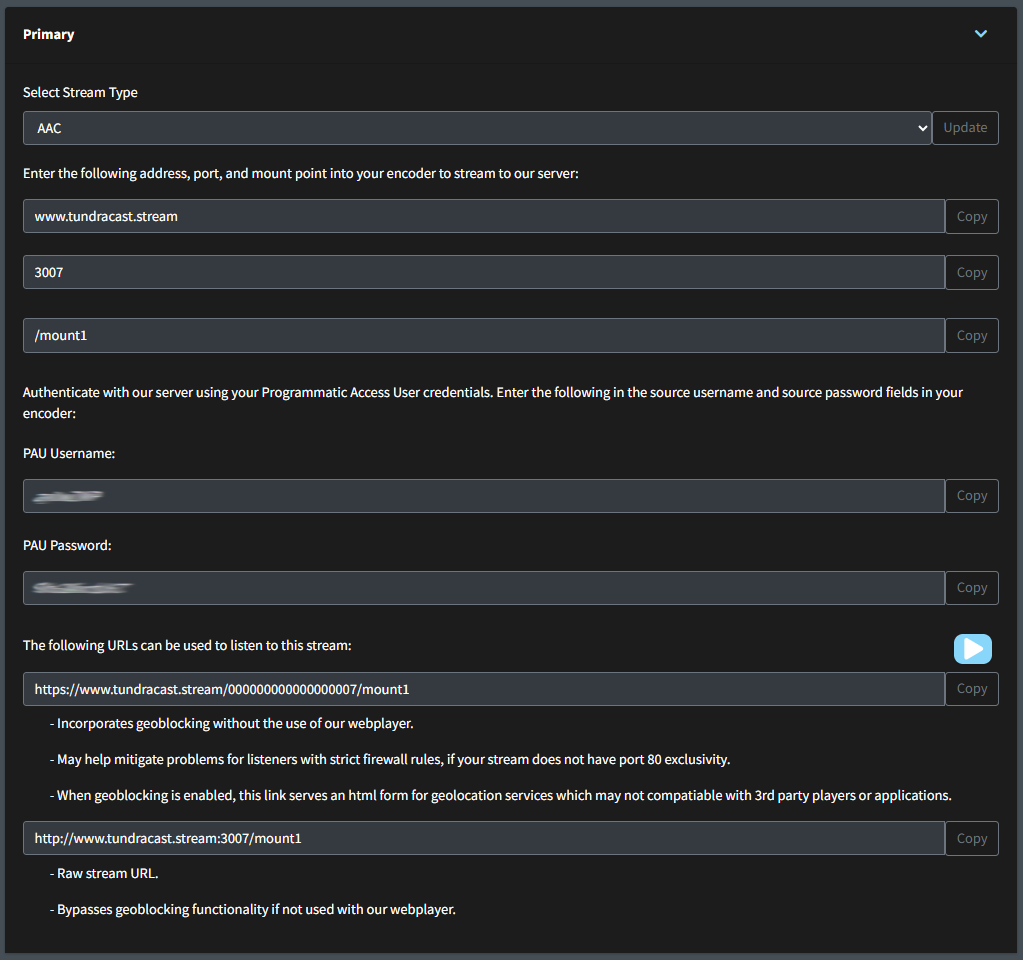
Figure 1. Primary endpoint values under Streaming Endpoints. The screenshot uses a retired demo stream; your values will differ.
Do not copy the listener URL: The HTTPS and raw-stream URLs near the bottom of the portal panel are for listening. They are not pasted into the encoder's Stream address field.
Portal-to-encoder field map
Encoder field
Portal value
How to use it
Format
Select Stream Type
Choose the same codec: AAC or MP3.
Stream address
Address
Normally www.tundracast.stream; the encoder displays this as read-only.
Port
Port
Enter the station's assigned source port. Do not assume the example or default port.
Mount point
Mount point
Copy exactly. A leading slash is accepted and normalized.
PAU username
PAU Username
Copy the Programmatic Access User name exactly.
PAU password
PAU Password
Copy the password exactly and keep it confidential.
Use TLS
Provisioning status
Enable only when Summit has provisioned encrypted source connections on that port.
2. Install the encoder
The customer installation package is a Windows Setup .exe. The installer copies the applications and bundled FFmpeg files to the protected ProgramData location, registers the automatic Windows service, configures recovery, and provides shortcuts for the configurator.
C:\ProgramData\Summit Technology Group\TundraCast\TundraCast Streaming Encoder
Administrator rights required: If Windows displays a User Account Control prompt, verify that the publisher and file are expected, then approve the installation with an administrator account.
- Launch Setup. Open the current TundraCast Streaming Encoder Setup .exe.
- Review the Ready to Install page. Select Install to begin.
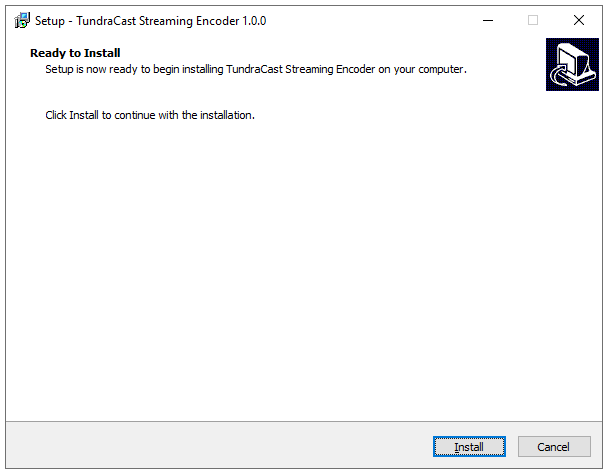
Figure 2. Setup is ready to install TundraCast Streaming Encoder 1.0.0.
- Wait for Setup to finish. Do not close the installer or restart Windows while files and FFmpeg components are being copied.
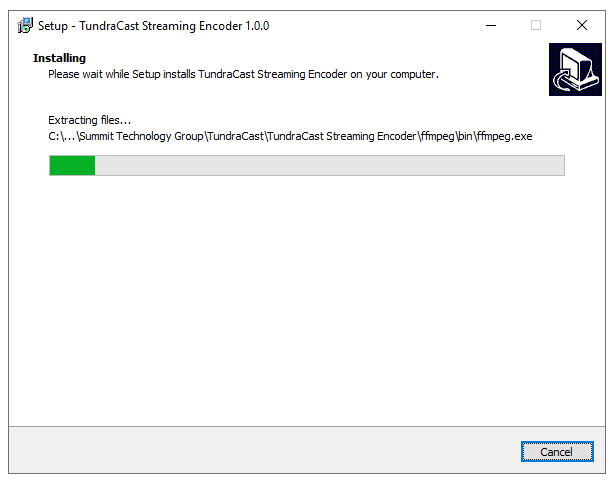
Figure 3. Installation progress while the bundled encoder components are extracted.
- Open the configurator. Leave Open the TundraCast Streaming Encoder configurator selected and choose Finish.
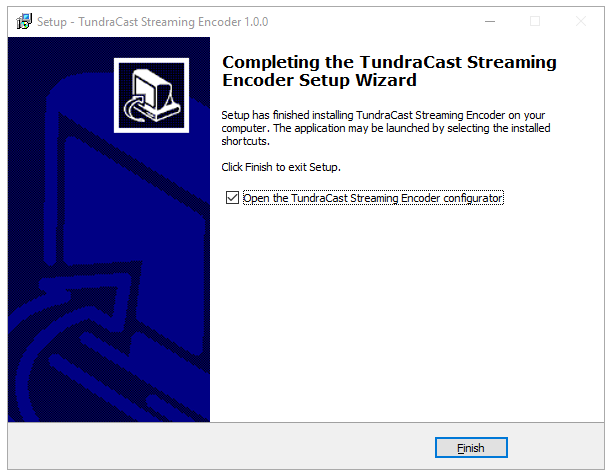
Figure 4. Setup completion page with the option to open the configurator.
What the installer does
- Verifies administrator rights and .NET Framework 4.8.
- Installs the configurator, Windows service, common library, FFmpeg, FFprobe, scripts, and documentation.
- Creates or repairs the TundraCastStreamingEncoder automatic Windows service.
- Applies service recovery settings and attempts to start the service.
- Preserves an existing site configuration and logs during a normal repair or upgrade.
3. Understand the configurator
The configurator manages the encoder engine, four independent stream slots, runtime status, and the Windows service. Each enabled stream can use its own audio input, destination, and encoding settings.
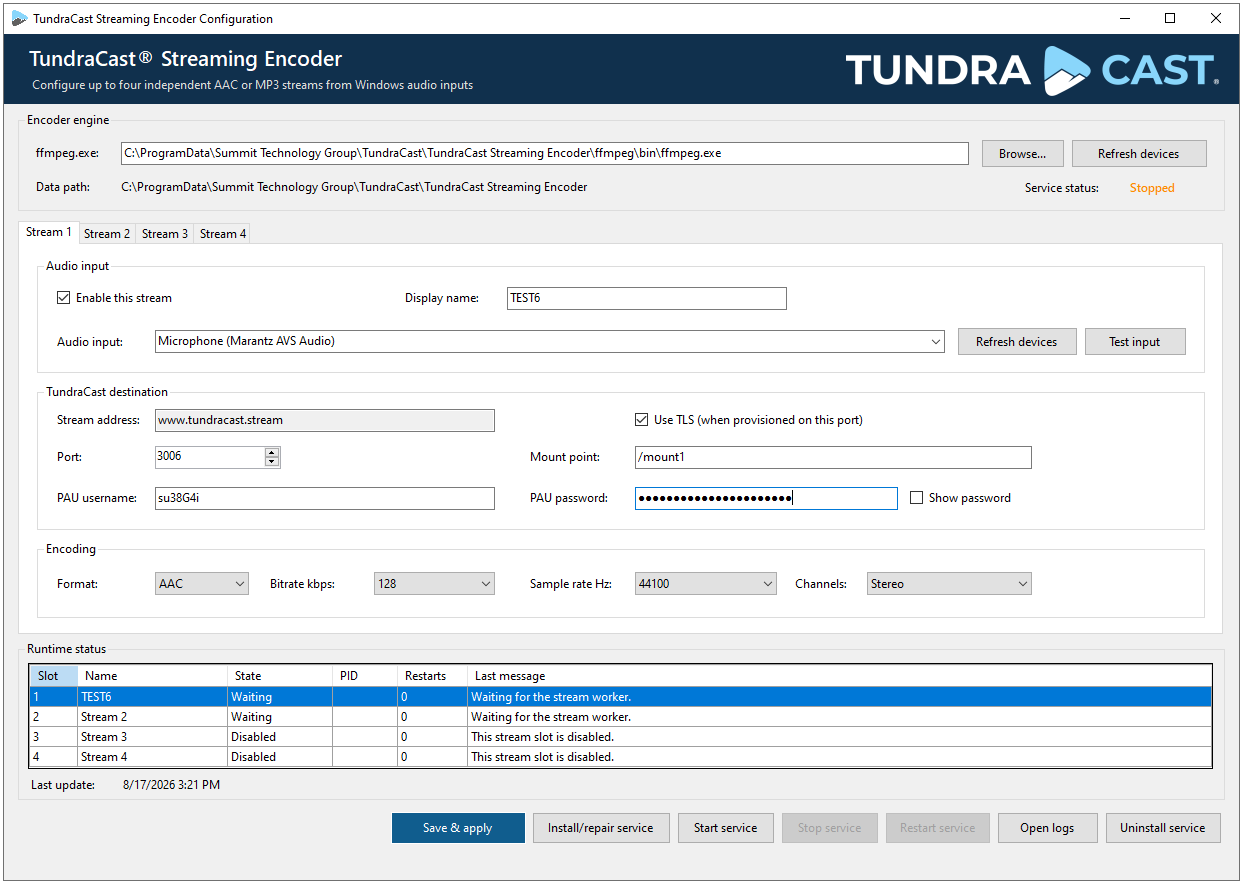
Figure 5. TundraCast Streaming Encoder configurator. All displayed account values are nonproduction examples.
Encoder engine
Control
What it does
Operator guidance
ffmpeg.exe
Shows the FFmpeg executable used to capture and encode audio.
Keep the bundled path unless Summit Support directs you to an approved replacement.
Browse
Selects a different FFmpeg executable.
Use only a compatible 64-bit build with DirectShow, native AAC, libmp3lame, and Icecast support.
Data path
Shows the protected machine-wide application data location.
Configuration, status, and logs are maintained beneath this location.
Refresh devices
Re-enumerates Windows audio capture devices.
Use after attaching hardware, starting an AoIP driver, or changing Windows audio devices.
Service status
Shows whether the Windows service is Running or Stopped.
A saved configuration streams only while the service is running.
Stream tabs
Stream 1 through Stream 4 are independent slots. Configure only the slots assigned to the computer and leave unused slots disabled. Before saving, review every enabled tab; the configurator validates the complete candidate configuration before applying it.
4. Configure a stream
Audio input settings
Setting
Purpose
How to configure it
Enable this stream
Starts a worker for this slot when the service runs.
Select only after the input, destination, and encoding fields are complete.
Display name
Identifies the slot in runtime status and is sent as the Icecast stream name.
Use a concise station or feed label, such as WXYZ Main or Studio B.
Audio input
Selects the exact Windows DirectShow capture-device name.
Choose the correct sound card or AoIP input. The field remains editable for known devices that are temporarily unavailable.
Refresh devices
Updates the available audio-input list.
Use whenever a device or driver was added, removed, or restarted.
Test input
Runs a three-second FFmpeg capture test to a null output.
Use before enabling the stream. This confirms local capture only; it does not connect to TundraCast.
TundraCast destination settings
Setting
Purpose
How to configure it
Stream address
TundraCast source-ingest host.
Read-only and fixed to www.tundracast.stream in version 1.0.0.
Use TLS
Encrypts the encoder's source connection.
Select only when the assigned source port is provisioned for TLS. An HTTPS listener URL does not by itself prove that source TLS is enabled.
Port
Assigned TCP source-ingest port.
Copy the Port shown under Streaming Endpoints. Valid range is 1-65535; the software default is not necessarily your assigned port.
Mount point
Selects the destination stream on the server.
Copy it exactly. It may be entered with or without the leading slash; the configurator normalizes it.
PAU username
Programmatic Access User name used for source authentication.
Copy exactly from Streaming Endpoints. Treat it as credential information.
PAU password
Programmatic Access User password used for source authentication.
Copy exactly. Use Show password only in a private workspace and clear observers from the screen.
Show password
Temporarily reveals the password in the configurator.
Leave cleared during normal operation and screenshots.
Connection values are assigned: Ports and endpoint identifiers shown in this guide are examples. A different station, mount, stream type, or server assignment can use different values.
Encoding settings
Setting
Available values
What it controls
Format
AAC or MP3
AAC uses FFmpeg's native AAC encoder with ADTS/audio-aac output. MP3 uses libmp3lame with audio-mpeg output. Match the portal's Select Stream Type setting.
Bitrate kbps
32, 48, 64, 96, 128, 160, 192, 256, 320
Sets the encoded audio bitrate. Use the bitrate authorized for the station's TundraCast plan and endpoint.
Sample rate Hz
32000, 44100, 48000
Sets the encoded sample rate. 44100 Hz is common for streaming, but the correct choice depends on the audio chain and station requirements.
Channels
Mono or Stereo
Sets the encoded channel count. Select Mono for a mono feed or when bandwidth efficiency is the priority; select Stereo for a true stereo source.
Recommended configuration sequence
- Select the stream tab you intend to configure.
- Refresh and select the audio input. Use Test input and resolve any local capture error before continuing.
- Enter a display name. Use an operationally meaningful station or feed name.
- Copy the destination values. Use the matching Primary endpoint under Streaming Endpoints.
- Match the stream type. Set Format to the same AAC or MP3 selection used in the portal.
- Set bitrate, sample rate, and channels. Use the authorized and technically appropriate values.
- Enable the stream. Review every enabled tab, then select Save & apply.
Accepted mount-point examples
/wxyz
wxyz.aac
/customer/station-main
Do not use a blank mount, a single slash, spaces, or query-string characters in a mount point.
5. Save, start, and verify
Save and apply the configuration
Select Save & apply after every enabled slot is complete. The configurator writes the settings safely, and the service normally detects a valid change within approximately five seconds. Use Restart service when an immediate controlled reload is preferred.
Safe update behavior: The configurator writes a temporary file and atomically replaces the active settings. The service validates the complete candidate, verifies FFmpeg, and decrypts enabled passwords before applying it. An invalid candidate is rejected rather than intentionally stopping a valid running set.
Runtime status

Figure 6. Runtime status with two streams publishing and two slots disabled.
Column
Meaning
Healthy indication
Slot
Stream slot number, 1 through 4.
Matches the configured tab.
Name
Configured display name.
The expected station or feed label.
State
Current slot condition, such as Disabled, Waiting, or Streaming.
Enabled slots reach Streaming; unused slots show Disabled.
PID
Windows process ID for the slot's FFmpeg worker.
A numeric PID is present while the worker runs.
Restarts
Observed worker restart count for the displayed runtime period.
Stable at zero or not increasing repeatedly.
Last message
Most recent plain-language status or error message.
Reports that the service is running and publishing the stream.
Last update
Time of the most recent status snapshot.
Updates while the configurator and service are operating.
Validation checklist
- Every enabled row reaches Streaming.
- The correct station audio is audible and mapped to the correct mount point.
- The selected codec, bitrate, sample rate, and channel mode match the station's intended configuration.
- The TundraCast admin portal shows the expected source connection.
- A brief network interruption is followed by automatic reconnection.
- After a planned reboot, the service starts automatically and enabled streams return to Streaming.
6. Service controls and routine operation
Button
Action
When to use it
Save & apply
Validates and saves the complete configuration.
After changing any stream or engine setting.
Install/repair service
Creates or repairs the Windows service registration and startup configuration.
If the service is missing, damaged, or not registered correctly. Run the configurator as Administrator.
Start service
Starts the Windows service and enabled stream workers.
When Service status is Stopped after configuration or maintenance.
Stop service
Stops all stream workers and the Windows service.
For planned maintenance. This interrupts every enabled stream on the computer.
Restart service
Performs a controlled stop and start.
To apply immediately or recover from a transient condition.
Open logs
Opens the encoder log location.
When diagnosing device, authentication, connection, or FFmpeg errors.
Uninstall service
Removes only the Windows service registration.
For service repair or decommissioning. It preserves application files, configuration, and logs.
Configuration and status files
The active configuration is stored at:
C:\ProgramData\Summit Technology Group\TundraCast\TundraCast Streaming Encoder\encoder-settings.json
- encoder-settings.json contains machine-wide settings. Passwords are stored as Windows DPAPI ciphertext, not plain text.
- DPAPI-protected passwords cannot be moved to another Windows computer and expected to decrypt. Re-enter PAU passwords on a replacement machine.
- encoder-status.json is a machine-readable runtime snapshot used by the configurator. Frequent updates are normal and do not indicate repeated configuration changes.
- Do not manually edit configuration or status files while the service is running. Use the configurator for normal changes.
- Review configuration files and logs before sharing them externally; they can contain operational identifiers even when passwords are encrypted.
AoIP drivers and the Windows service account
The default service identity is LocalSystem. Some AoIP drivers are installed only for a particular interactive user and may not be visible to LocalSystem. If that occurs, use a dedicated, non-interactive local service account, configure the AoIP driver for that account, grant Log on as a service, and grant only the required application and log access. Do not use a normal employee's password as the service identity.
7. Troubleshooting
Symptom
Likely cause
Corrective action
Audio input is missing
The device is disconnected, its driver is stopped, or it is unavailable to the service account.
Confirm the device in Windows, start its driver, select Refresh devices, and verify service-account access.
Test input fails
Windows cannot capture the selected device or FFmpeg cannot use it.
Verify Windows Audio, confirm the exact device, close applications holding it exclusively, and review logs.
State remains Waiting
The service is stopped, configuration has not applied, or the worker has not started.
Select Save & apply, confirm Service status, then Start service or Restart service.
Authentication error
PAU username or password is incorrect, or values belong to another endpoint.
Re-copy both PAU fields from the matching Primary endpoint. Avoid added spaces.
Connection refused or timeout
Wrong port, outbound firewall restriction, DNS issue, or server reachability problem.
Verify address and assigned port, test outbound access, and review local firewall or network security logs.
TLS or handshake error
Use TLS is selected on a source port not provisioned for TLS, or TLS inspection is interfering.
Confirm source-TLS provisioning. Do not infer it from a public HTTPS listening URL.
Worker restarts increase
Intermittent input, network, codec, or FFmpeg failure.
Read Last message and Open logs; stabilize the input and network before repeated manual restarts.
Streaming but no useful audio
Wrong input, silent source, channel mismatch, or upstream routing issue.
Use Test input, verify the Windows meter and physical/AoIP routing, then confirm mono/stereo selection.
Service is missing
Registration was removed or damaged.
Run the configurator as Administrator and select Install/repair service.
When collecting information for support
- Record the affected stream slot, display name, State, Last message, and approximate time of failure.
- Use Open logs and retain the relevant time range.
- Provide the encoder version, Windows version, input device name, format, bitrate, sample rate, and channel mode.
- Do not send an unredacted PAU password. Review screenshots, configuration files, and logs before sharing them.
8. Remove or repair the installation
Use Install/repair service when application files are present but the Windows service needs to be recreated. Use Uninstall service only when you intend to remove service registration while preserving files, configuration, and logs. To remove the installed application, use Windows Settings > Apps > Installed apps > TundraCast Streaming Encoder > Uninstall.
Appendix A - Field reference
Area
Field or control
Source / ownership
Engine
ffmpeg.exe
Installed locally; change only under support direction.
Engine
Data path
Installed locally; read-only machine-wide location.
Engine
Service status
Reported by the local Windows service.
Audio input
Enable this stream
Local operator choice for each slot.
Audio input
Display name
Local operator-defined station/feed label.
Audio input
Audio input
Local Windows DirectShow device.
Destination
Stream address
TundraCast Streaming Endpoints address; read-only in version 1.0.0.
Destination
Use TLS
TundraCast source-port provisioning; confirm when assigned.
Destination
Port
Copy from Streaming Endpoints > Primary.
Destination
Mount point
Copy from Streaming Endpoints > Primary.
Destination
PAU username
Copy from Streaming Endpoints > Primary.
Destination
PAU password
Copy from Streaming Endpoints > Primary; confidential.
Encoding
Format
Match Select Stream Type under Streaming Endpoints.
Encoding
Bitrate kbps
Local choice within the station's authorized plan/endpoint.
Encoding
Sample rate Hz
Local choice based on input and station requirements.
Encoding
Channels
Local choice: Mono or Stereo.
Appendix B - Glossary
Term
Meaning
AoIP
Audio over Internet Protocol; network audio systems that expose capture devices to Windows.
DirectShow
The Windows multimedia capture interface used by FFmpeg to access audio inputs.
FFmpeg
The bundled engine that captures, encodes, and publishes each configured audio stream.
Mount point
The server-side path that identifies a particular stream destination.
PAU
Programmatic Access User; the username and password used by the encoder to authenticate as a source.
PID
Process identifier assigned by Windows to a running FFmpeg worker.
End of guide


